
Order Management
Approving a quote automatically creates a corresponding order. This page covers the states an order moves through, the wholesaler actions that move it, holding and cancelling, editing an order after it exists, and the status changes a shipment makes on its own.
An order is the record of work a wholesaler has committed to and a retailer has agreed to pay for. This page covers the states an order passes through, who moves it between them, and what can still be changed after it exists.
Where an Order Comes From
The order is created at the moment the quote is approved, whether the retailer approves it themselves or the wholesaler completes it on their behalf. Approving is covered in Quote Management. A new order lands in Accepted.
What an Order Carries
An order inherits what the quote settled rather than restating it.
- The configuration. The design or the line items as they stood at approval, including the stone, the size, the finish, and any text and artwork on it.
- The price. The figures agreed on the quote. Later catalog changes do not reprice an order that already exists.
- The customer. The retailer account the quote was raised against.
- The fulfillment method and any note chosen on the approval screen.
Pickup and Delivery
The fulfillment method is chosen when the quote is approved. It decides how the finished monument leaves the wholesaler, and which route the order takes through the middle of its lifecycle.
- Pickup. The retailer collects from one of the wholesaler's locations. The order ends its production run in Pickup Ready.
- Delivery. The wholesaler ships the stone to a location the retailer nominates. The order ends its production run in Shipped.
The Order Lifecycle
An order runs from the point the quote is approved to the point the stone is with the retailer. Unlike a quote, actions do not alternate between the retailer and the wholesaler. Every step forward is taken by the wholesaler.
Accepted
Wholesaler actsThe order exists and is on the books. Nothing has been made yet. Line items, adjustments, and price overrides can all still be changed.
The wholesaler starts the order.
In Progress
Wholesaler actsThe monument is in production. Stock can be allocated against the order, and the order can go onto a shipment.
A shipment carrying the order is cancelled to Accepted
The wholesaler ships the order, or marks it ready for pickup. Which of the two is offered depends on the fulfillment method.
Shipped or Pickup Ready
Wholesaler actsThe work is finished. A delivery order is Shipped once it has left the yard. A pickup order is Pickup Ready once it is waiting to be collected.
The wholesaler completes the order.
Completed
TerminalThe order is closed and the stock committed to it counts as fulfilled. Cannot be reversed.
Order States
The state shows as a badge on the order list and in the Order Information panel, and it decides which actions are offered.
- Accepted. The order has been created and production has not started.
- In Progress. In production.
- Pickup Ready. Pickup orders only. Finished and waiting to be collected.
- Shipped. Delivery orders only. Finished and gone from the yard.
- On Hold. Paused, with a reason recorded against it. Resuming returns the order to whatever state it was in before.
- Completed. Fulfilled and closed. Terminal.
- Cancelled. Closed without being fulfilled. Terminal.
The Order List
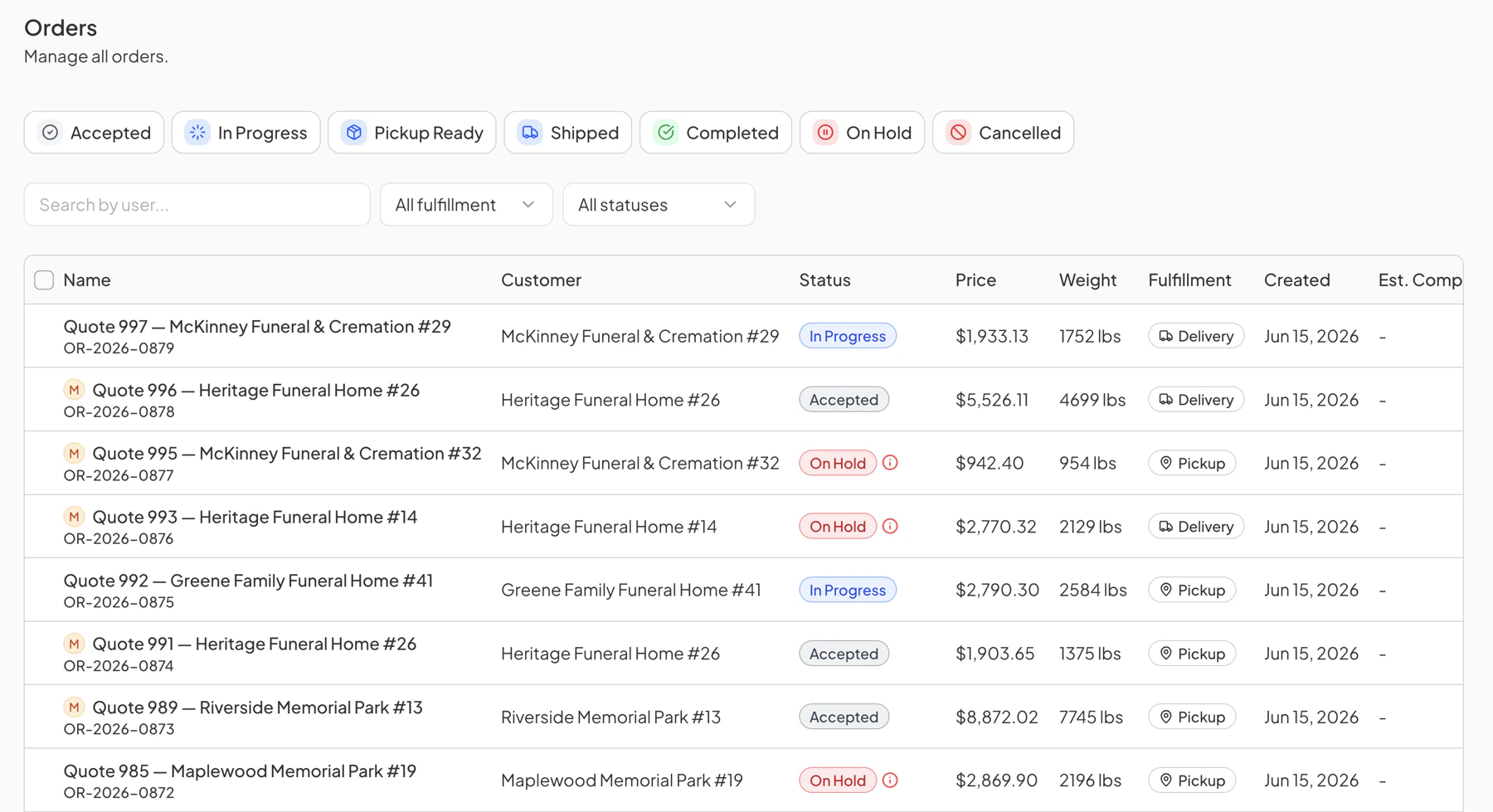
Orders lists every order on the wholesaler's books. The chips across the top filter by state, and the search box and the two dropdowns below them narrow the list further by account, by fulfillment method, and by state.
Each row carries the order name and its order number, the customer, the state badge, the price, the weight, the fulfillment method, the date the order was created, and the estimated completion date. An order on hold carries an information icon beside its badge, which shows the reason.
The Order Page
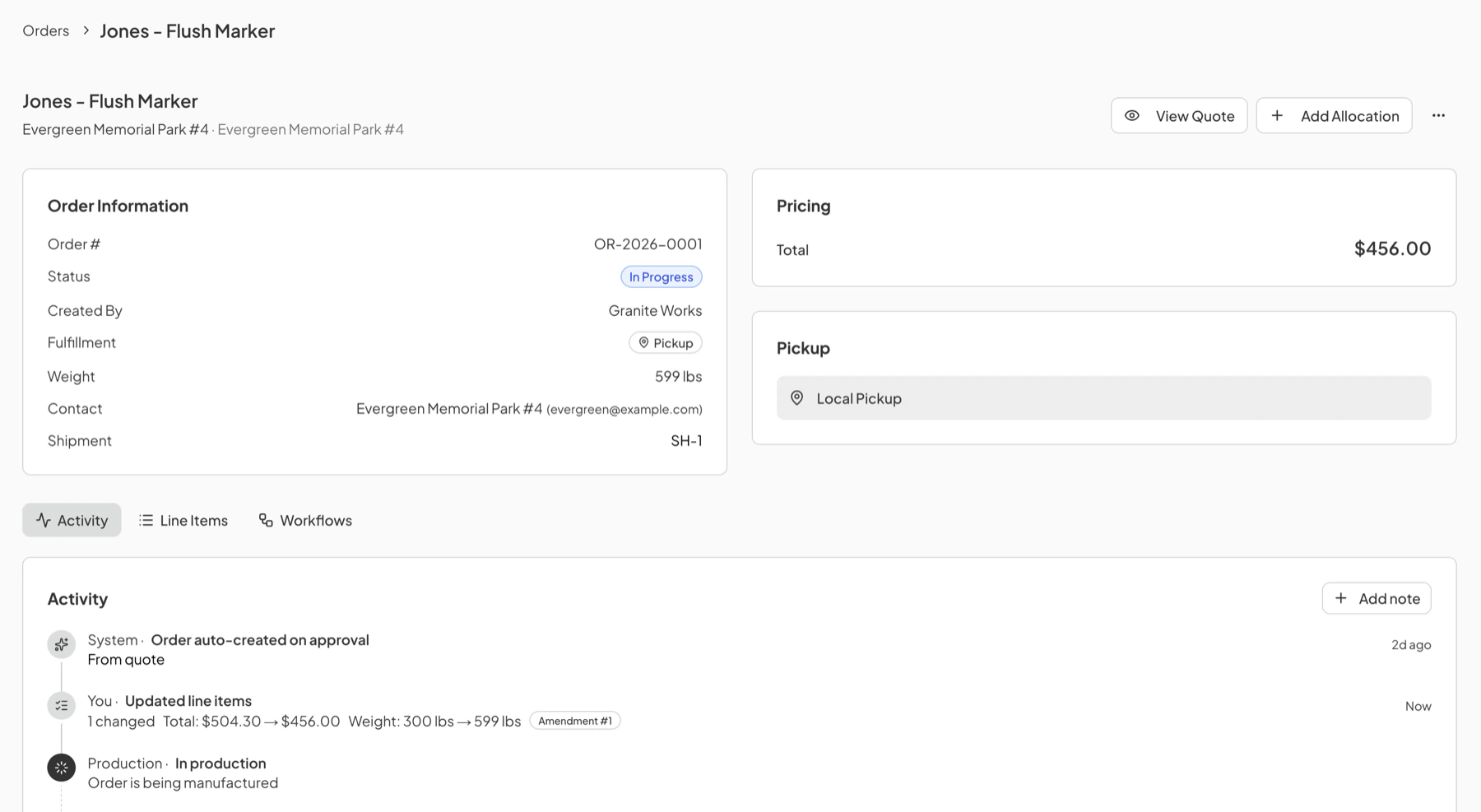
An order opens on three panels and a set of tabs. The actions sit across the top right, alongside View Quote, which goes back to the quote the order came from.
- Order Information carries the order number, the state badge, who created it, the fulfillment method, the total weight, the contact on the account, and the shipment the order is attached to if it is on one.
- Pricing carries the total.
- Pickup shows that the retailer is collecting from the wholesaler rather than having the stone delivered.
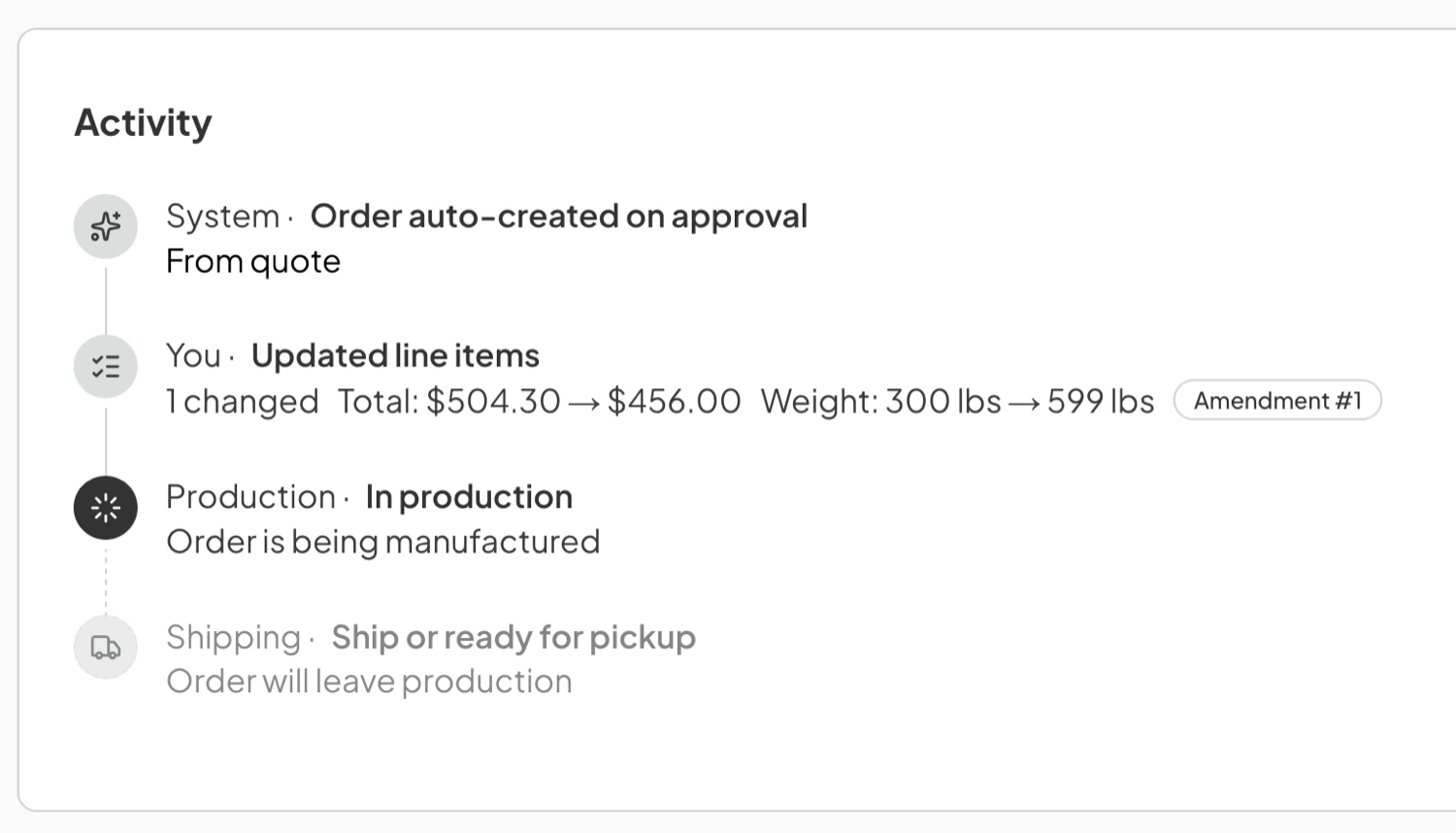
Three tabs sit below the panels: Activity, Line Items, and Workflows. Activity opens first. It records what has happened to the order, marks where the order currently stands, and grays out the steps still ahead of it. Add note writes onto the same timeline. Use it for internal or customer-facing detail about the order.
Moving an Order Forward
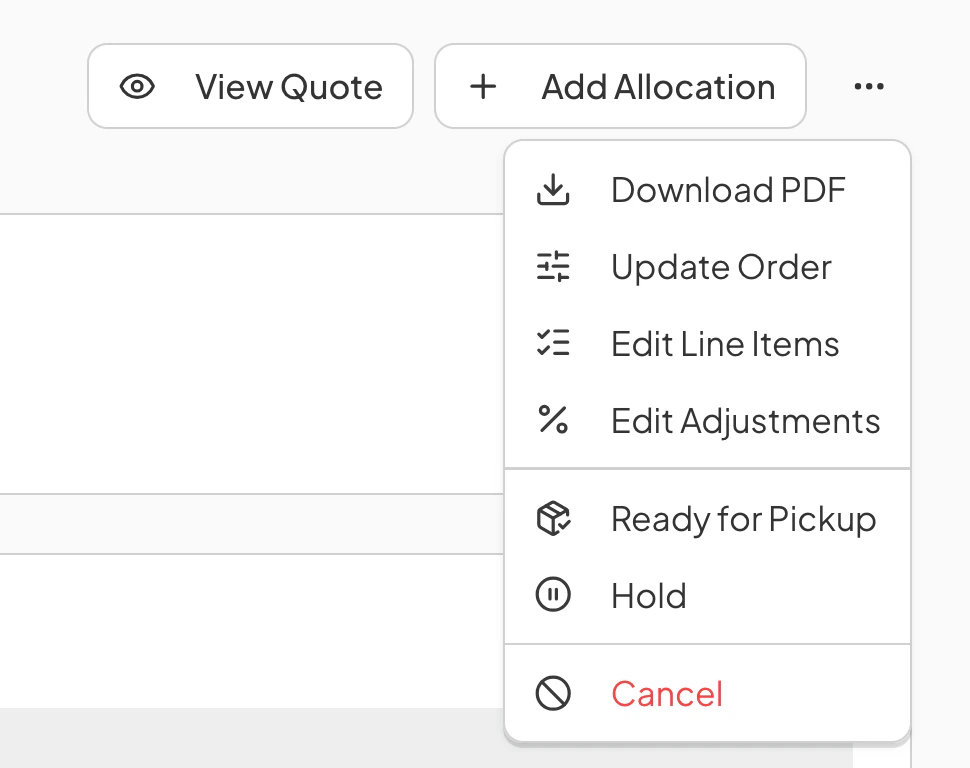
Every step forward is a wholesaler action, taken from the actions menu at the top right of the order. The menu changes with the state and the fulfillment method, so only the moves that apply to that order are offered.
- Start takes an accepted order into production and moves it to In Progress.
- Ship on a delivery order, or Ready for Pickup on a pickup order, records that the work is finished.
- Complete closes the order out and marks the stock committed to it as fulfilled.
Emailing the Customer
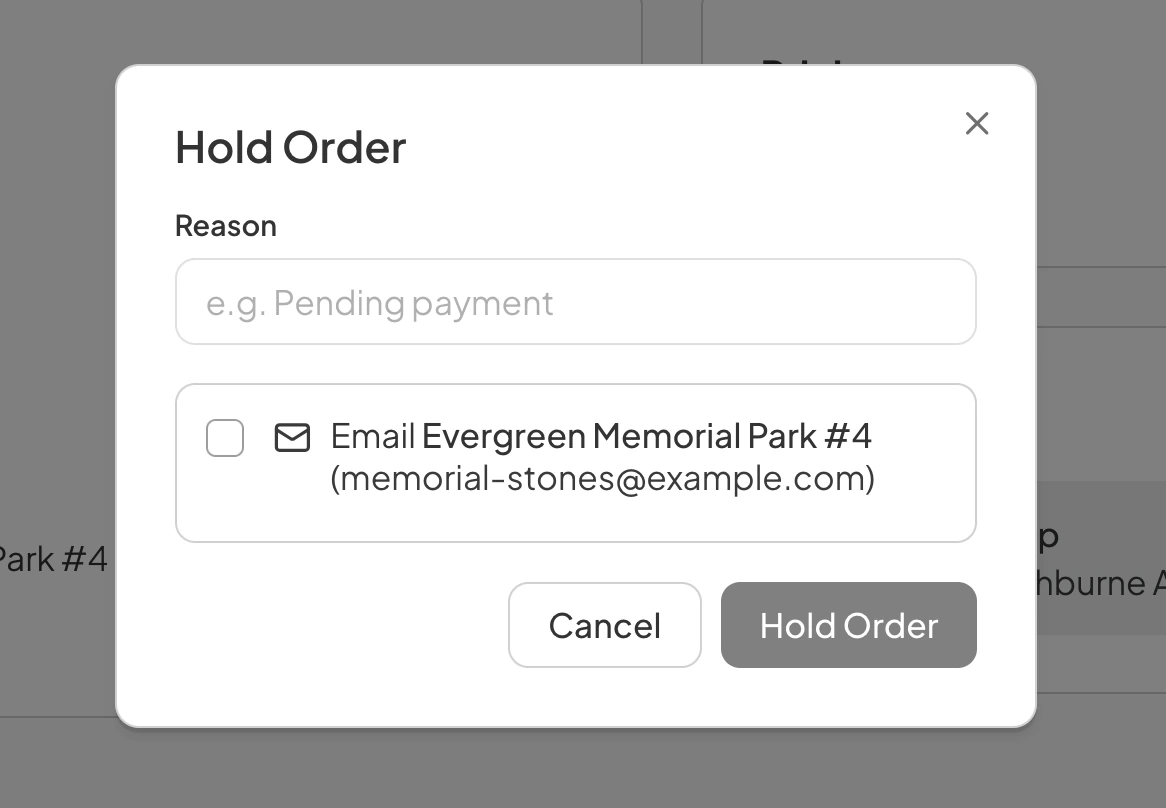
Any move that changes an order's state offers to email the retailer. The dialog behind the action carries a checkbox naming the account and the address the mail goes to, and it is unchecked by default.
The email states where the order now stands and the estimated completion date. On a hold it also carries the reason typed into the dialog.
Putting an Order on Hold
Hold pauses an order without closing it. Use it for an order that cannot move for a reason that has nothing to do with the stone, such as an unpaid invoice or a detail the retailer has yet to confirm.
- Choose Hold from the actions menu.
- Enter a Reason. It is kept on the order and shown behind the information icon beside the badge on the order list.
- Check the email box if the retailer should be told.
- Click Hold Order.
Resume returns the order to the state it was in before the hold, whatever that was.
A held order can still be edited. Line items, adjustments, and price overrides are all available while an order is on hold.
Cancelling an Order
Cancel closes an order that has not been completed. This is the one order action open to both sides: a wholesaler can cancel any order on their books, and a retailer can cancel their own.
Where the Inventory module is in use, cancelling frees any stock committed to the order and returns it to the on hand pool. The order stays on the list as a record of what was asked for and what happened to it.
Editing an Order
An order is not frozen once it exists. What can be changed depends on the state it is in.
- Edit Line Items changes what is actually in the order. Available while the order is Accepted, In Progress, or On Hold.
- Edit Adjustments changes the discounts and surcharges sitting on top of the line pricing.
- Update Order covers the Total Price, Weight, and Est. Completion Date on the order.
- Download PDF produces the order document as it currently stands.
Editing line items, adjustments, or the order itself writes an amendment onto the activity timeline. The entry names who made the change and what changed.
Committing Stock to an Order
An order records demand. Nothing in the warehouse is claimed for it until the wholesaler allocates stock against its lines.
Add Allocation at the top of the order commits stock to its line items from available inventory. It applies while the order is Accepted or In Progress.
When a Shipment Moves the Order
An order attached to a shipment can change state without anyone opening the order.
- Moving a shipment to released or in production can take its orders to In Progress.
- Recording a shipment as arrived, or closing it out, can complete its orders, where the wholesaler chooses to mark them complete as part of that step.
- Cancelling a shipment returns the orders synced with it to Accepted.
Who Can See an Order
A retailer sees the orders raised against their own account, with the state and the expected date on each. A wholesaler sees every order on their books, across all their customers.
Last updated August 2, 2026
Still need help?
If this page did not answer your question, email our support team and include your account name and what you were trying to do.