
Quote Management
Once a quote exists, both kinds move through the same lifecycle. This page covers the states a quote passes through, the steps each side has to take, the revision loop, approving a quote into an order, and what happens to the price along the way.
A quote runs from the point it is created to the point it becomes an order, and it does not get there on its own. Both sides have steps to take: the retailer submits and approves, the wholesaler reviews and sends. This page covers the states in between, who has to act at each one, and what can still be changed.
The Quote Lifecycle
A quote moves forward only when someone acts on it, and the two sides alternate. Nothing in the run below happens on a timer.
Draft
Either sideThe quote is being built. Line items, quantities, and pricing can all still change. Either side can create one.
A wholesaler building the quote themselves goes straight there to Ready for review
The retailer submits the quote to the wholesaler.
Submitted to wholesaler
Wholesaler actsThe retailer has handed the quote over and is waiting on the wholesaler to look at it.
The wholesaler marks the quote ready.
Ready for review
Wholesaler actsThe wholesaler has checked the quote over and agrees with what is listed. This is also where they attach anything the retailer needs in order to review it, such as CAD files or sample photographs.
The wholesaler sends the quote to the retailer.
Quoted
Retailer actsThe priced quote is with the retailer. This is the only state an approval can come from.
The retailer sends it back with a note to Changes requested
The wholesaler withdraws a quote nobody answered to Expired
The retailer approves the quote and the order is created.
Ordered
TerminalAn order exists and the quote is closed. Cannot be reversed.
Quote States
The state shows as a badge in the Quote Details panel and decides which actions are offered.
- Draft. Being built. Price is an estimate only.
- Submitted to wholesaler. The retailer has sent it in and is waiting on the wholesaler to confirm the pricing, and on any images or CAD files that go with it.
- Ready for review. The wholesaler has marked it ready and attached whatever the retailer needs to review it. It still has to be sent.
- Quoted. Priced and sitting with the retailer, who approves it or asks for changes.
- Changes requested. The retailer has sent it back with a note. The wholesaler reworks it and marks it ready again.
- Ordered. Approved, with an order behind it. Terminal.
- Cancelled. Closed without an order. Terminal.
- Expired. Withdrawn by the wholesaler. Terminal.
The Quote Page
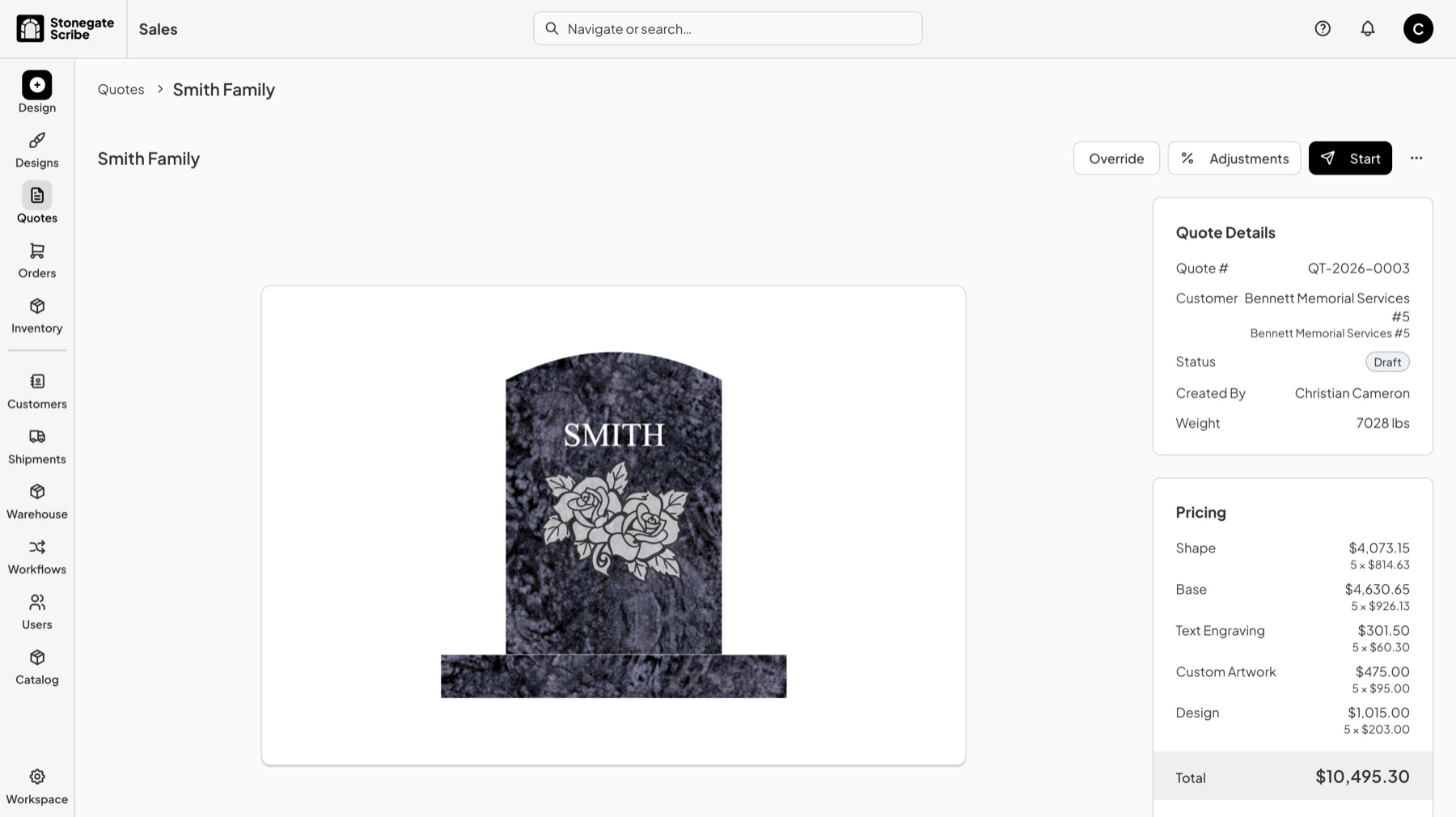
A quote opens on the design or line items it covers, with two panels down the right.
- Quote Details carries the quote number, the customer it is raised against, the state badge, who created it, and the total weight.
- Pricing breaks the total down by category, such as shape, base, text engraving, custom artwork, and design, each showing the quantity and the price for one.
The actions available sit across the top right and change with the state. On a quote that is still being worked on, a wholesaler also has Override and Adjustments there, which are the two pricing controls the retailer never sees. Both are optional. A quote that needs neither goes out at the price the design or the line items produced.
The Activity Panel
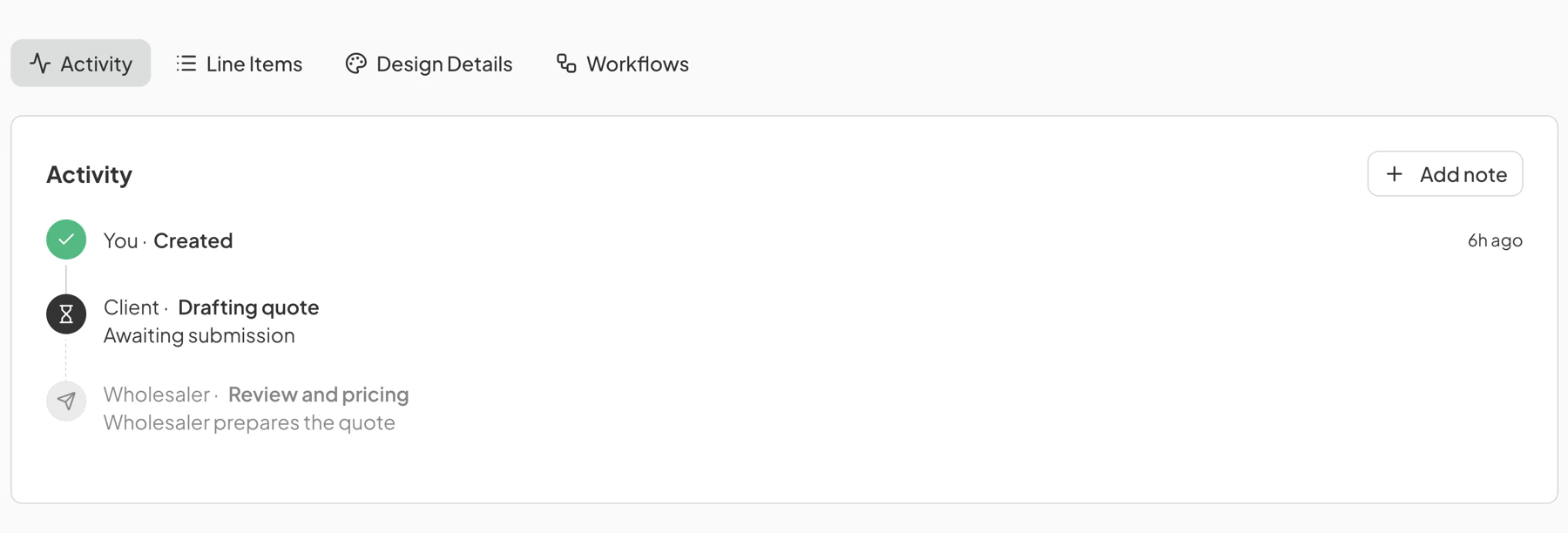
Activity is the first tab under the quote. It records what has happened so far and names who has to act next.
Each entry names the side responsible and the stage. Completed steps carry a check, the current step is marked and says what it is waiting on, and steps still ahead are grayed out with the side that will have to take them. A quote sitting on Awaiting submission is waiting on the retailer, not on the wholesaler, whatever else is open.
Add note writes a note onto the same timeline, which keeps a phone call or an emailed correction with the quote rather than in somebody's inbox.
The Wholesaler's Steps
The wholesaler owns the middle of the lifecycle. A quote already carries a price when it arrives, calculated from the design or from the line items on a manual quote, so there is no pricing to do unless something about it needs changing.
- Pick the quote up and mark it ready. This can be done from a draft, a quote the retailer has submitted, or one that has come back with changes requested.
- Change the pricing if the figure that came through is not the one to quote. Line items, Override, and Adjustments are all available while the quote is in any of the states above, and none of them is a required step.
- Send the quote to the retailer.
The Retailer's Steps
The retailer bookends the lifecycle.
- Build the quote from a design and submit it to the wholesaler. A draft goes nowhere until it is submitted.
- Once it comes back from the wholesaler, either approve it or request changes.
A retailer sees only their own quotes, and can edit one only while it is a draft.
Requesting Changes
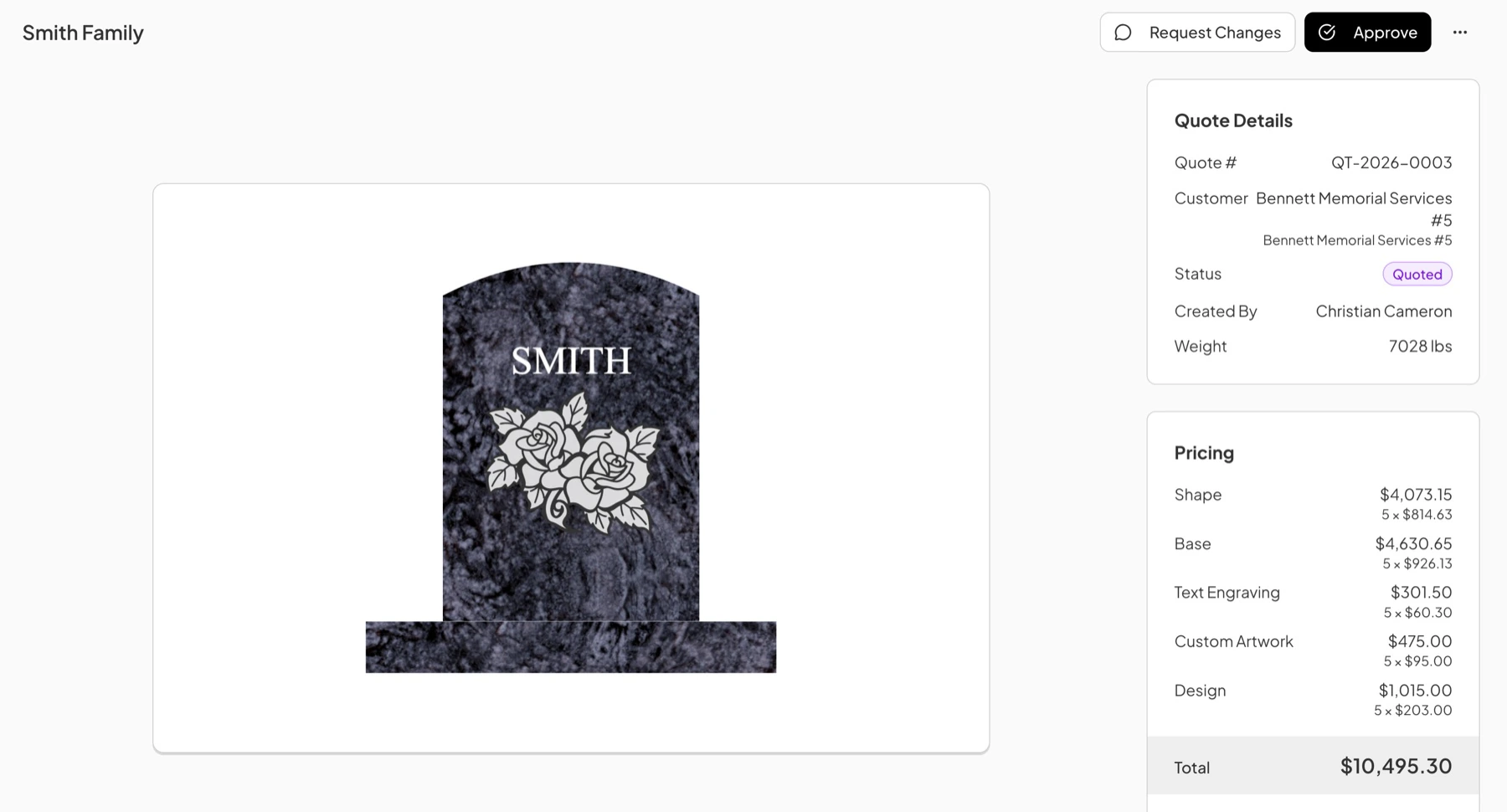
Request Changes is the alternative to approving. A note explaining what needs to change is required, so a quote never goes back to the wholesaler without a reason attached to it.
The quote goes back to the wholesaler, who reworks it, marks it ready, and sends it again. Each time a quote is sent to the retailer its version increases, so a quote that has been around the loop twice is on its third version. This is the revision cycle, and there is no cap on how many times it can run.
Approving a Quote
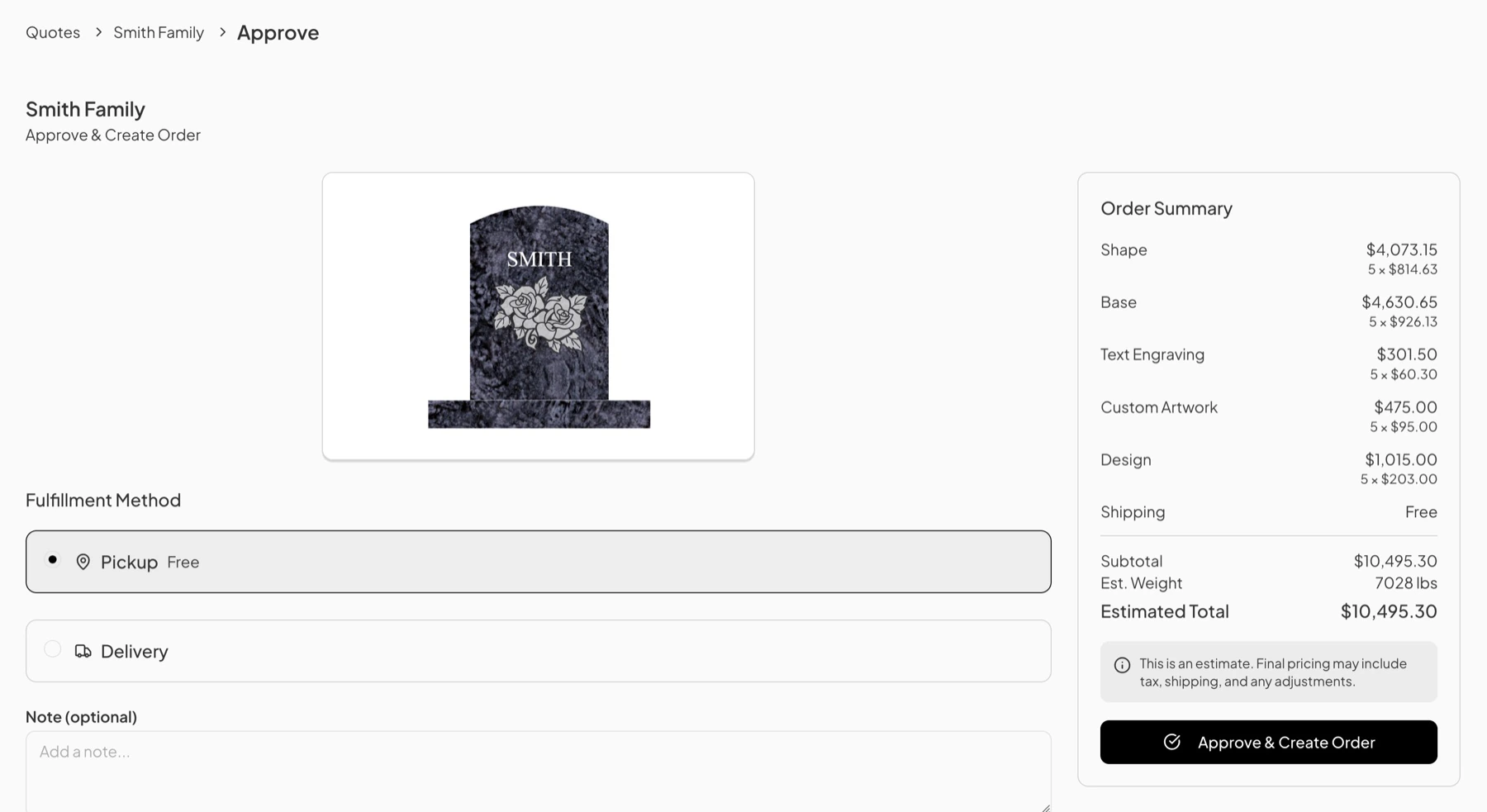
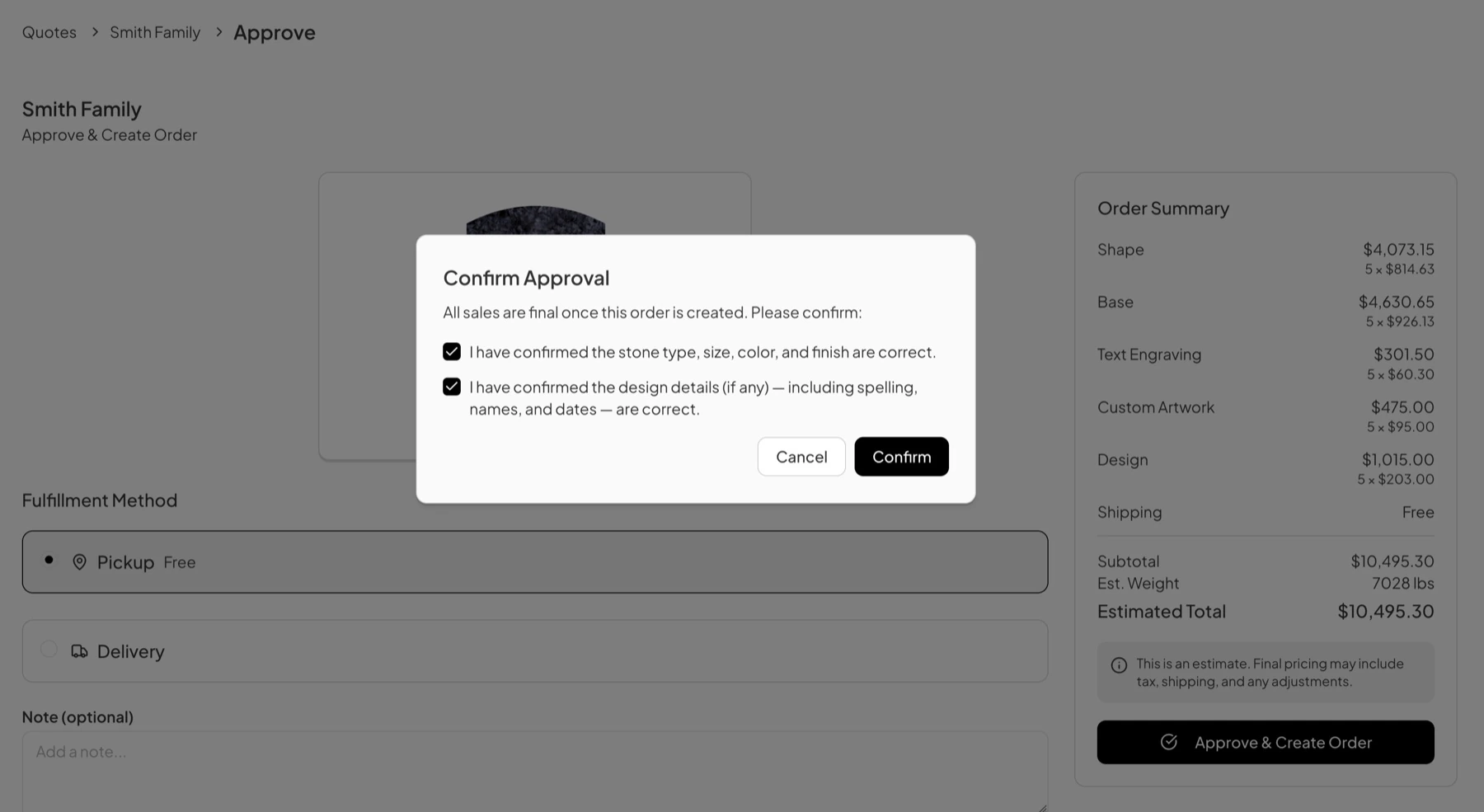
Approve opens Approve & Create Order, which collects the few details the design itself does not cover.
- Choose a Fulfillment Method. Pickup and Delivery are the two options.
- Add a Note if the order needs one. This is optional.
- Check the Order Summary down the right. It repeats the pricing breakdown and adds shipping, the subtotal, the estimated weight, and the estimated total.
- Click Approve & Create Order.
- Work through Confirm Approval. Both boxes have to be checked: one confirming the stone type, size, color, and finish, and one confirming the design details, including spelling, names, and dates.
- Click Confirm.
What a Wholesaler Can Do on Behalf of a Retailer
Every retailer action is also available to the wholesaler. A wholesaler can create the quote, submit it, request changes on it, approve it, and cancel it, without the retailer touching any of it.
There is also a way to skip the queue entirely. A wholesaler can complete a quote straight to an order without it passing through the states in between, which turns the whole lifecycle into a single step. That bypasses the retailer's approval, so it is meant for the cases where there is no approval to collect: an order agreed on the phone, a repeat of work already signed off, or a retailer who has no account and is never going to see the quote in the first place.
When a Quote Can Be Edited
- A retailer can edit their own quote while it is a draft, and not after.
- A wholesaler can edit line items, apply an override, and set adjustments while a quote is a draft, submitted to them, ready for review, or has changes requested against it.
A quote can be deleted outright in any state except ordered, which removes the record rather than closing it. Cancel is usually the better instrument, because a cancelled quote still shows what was asked for and what happened to it.
Cancelling and Expiring
Cancel is open to both sides and closes any quote that has not become an order. There is no way back from it, so a cancelled quote that turns out to be wanted has to be raised again.
Expire is the wholesaler's version, and it applies to a quote that has gone to the retailer and had no answer. It is the tidier way to close out a price that has been sitting too long to still be good.
What Happens to Pricing
The price on a quote is fixed when the order is created, at whatever was on the quote at that moment. Later catalog changes apply to new designs and new quotes. They do not reprice an order that already exists.
Before that, a price is provisional. An estimate seen in the design tool reflects the catalog at that moment, and the catalog can change. A quote sitting unanswered for weeks is quoting numbers that may no longer hold. This is the practical reason to expire an old quote rather than leave it out there.
Who Can See a Quote
A retailer sees only the quotes raised against their own account. A wholesaler sees every quote on their books, across all their customers. A quote belonging to another retailer does not show up as blocked or restricted. To a retailer who goes looking for it, it does not exist.
Next Step
Approving a quote creates an order, and everything after that point belongs to the order rather than to the quote. What an order carries forward, and the work that has to happen before anything ships, are covered in Order Management.
Last updated August 1, 2026
Still need help?
If this page did not answer your question, email our support team and include your account name and what you were trying to do.