
Creating a Manual Quote
A manual quote is built line by line rather than from a design, and only wholesalers can create one. This page covers the two kinds of line item, how price and weight are worked out for each, and the overrides, notes, and attachments available before the quote is created.
This page is for wholesalers.
Create a manual quote to price work for a retailer without going through the design tool. The quote is built from line items, and each line is either a product out of your catalog or a freeform one you describe yourself.
Who Can Create One
Only wholesalers. Retailers can build and submit designs, but they cannot start a quote without one. A retailer who needs a manual quote has to ask you for it.
When to Use a Manual Quote
- The retailer sends the request by phone or email and there is no design to work from.
- The work is not in your catalog at all. A freeform line takes a product name, dimensions, and a price you set, so nothing has to be added to the catalog first.
- The retailer has not started working in the design tool yet, and you do not want the quote waiting on that.
Before You Begin
- A customer has to exist before a manual quote can be created against it. Adding one is covered in Customers.
- Anything you plan to add as a catalog line needs pricing set, the same as it would for a design. Freeform lines carry the price you type, so they do not depend on the catalog.
Starting the Quote
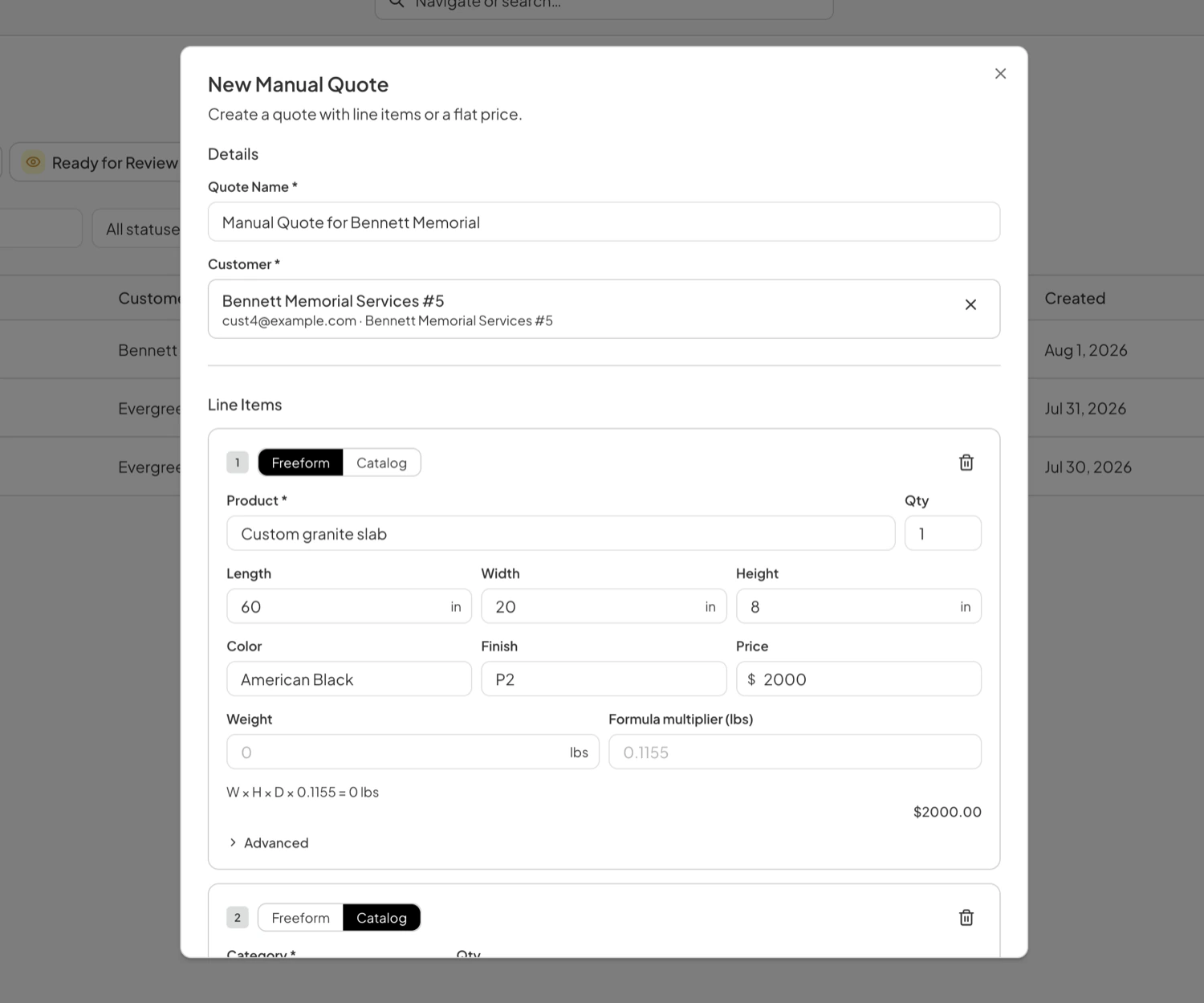
- Go to the Quotes page and click New Quote at the top right. The dialog it opens is New Manual Quote.
- Enter a Quote Name. This is what identifies the quote in your list, so name it for the job or the customer.
- Select the Customer. Both this and the name are required.
- Build the quote under Line Items. Add Line Item adds another, and the trash icon at the top right of a line removes it.
- Set each line to Freeform or Catalog with the toggle at the top left of that line. Lines of both kinds can sit on the same quote.
- Click Create Quote.
Running totals sit under the last line, with Weight on the left and Total on the right.
Catalog Line Items
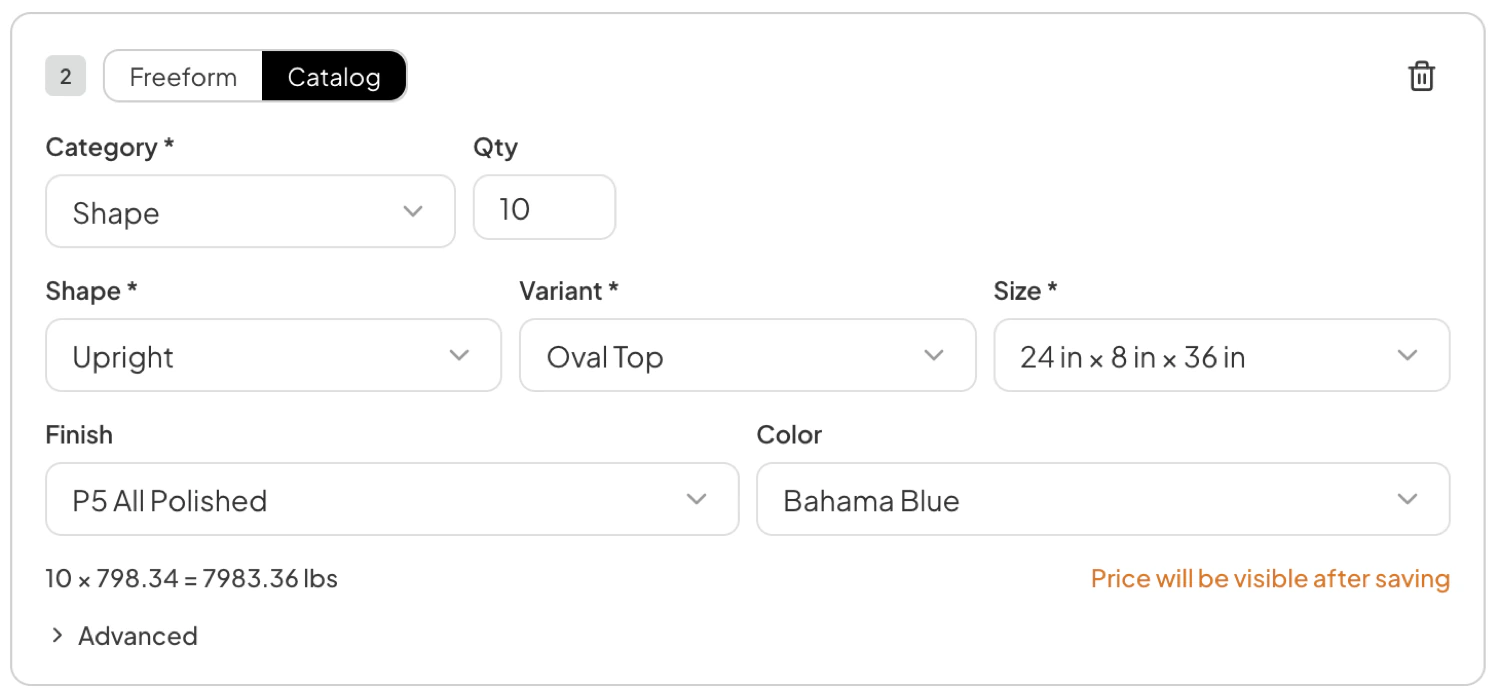
A catalog line draws on the same catalog the design tool is built from. Choose the Category first, because it decides which fields the rest of the line shows. A Shape line asks for Shape, Variant, and Size, all required, then Finish and Color.
Weight comes from the catalog rather than from anything you enter. The line shows the arithmetic underneath it, the quantity multiplied by the unit weight.
Freeform Line Items
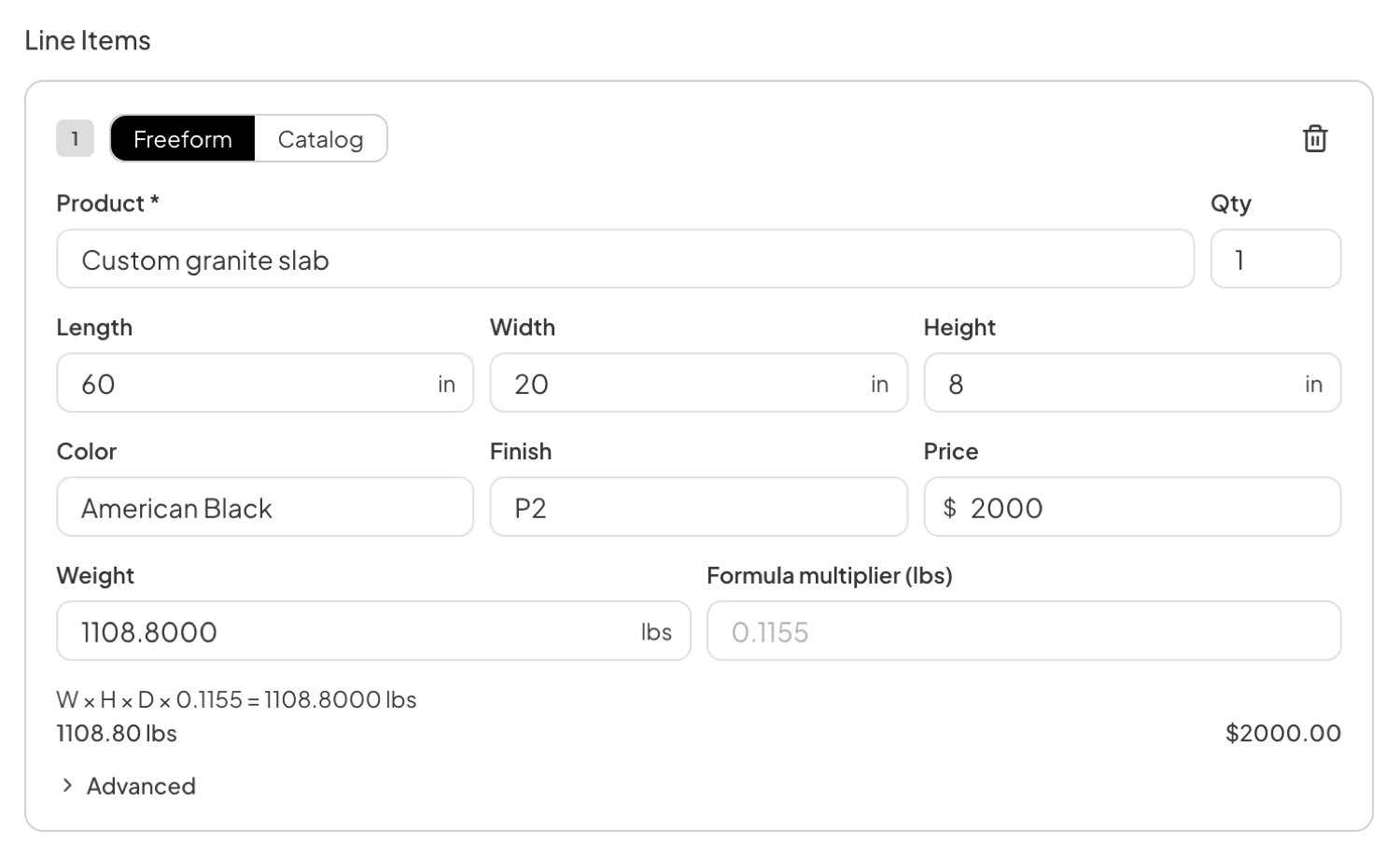
A freeform line is one you describe yourself, for work the catalog does not cover. Only Product is required, and it takes plain text. Length, Width, and Height are in inches, and Color and Finish are text rather than pickers, so a material you do not carry as a catalog option can still be quoted.
The Price is the amount for each unit of the line item.
Enter Weight directly, or leave it to the Formula multiplier (lbs), which estimates it from the three dimensions.
Finishing the Quote
Below the line items are two optional groups, Pricing and Additional Info. A quote can be created without touching either.
- Override price and Override weight replace the calculated figures with your own, for the quote as a whole rather than line by line.
- Note is free text that travels with the quote.
- Attach files takes up to five files at 100 MB each, and does not accept video or audio.
Create Quote saves the quote. This is the point at which catalog pricing is resolved, so it is also where a quote holding catalog lines gets its real total.
What a Manual Quote Does Not Carry
A manual quote has no design behind it, so there is no graphic for the retailer to preview.
For anything the retailer is likely to revise, or to reorder with small changes, a design is the better starting point. Manual quotes suit one-off work, and long quotes where every line item has to land on the same order.
Next Step
From here a manual quote is handled the same way as one built from a design. How it becomes an order and what happens to the price are covered in Quote Management.
Last updated August 1, 2026
Still need help?
If this page did not answer your question, email our support team and include your account name and what you were trying to do.